HTTPS Mixed Content: What It Is, Why It Breaks Your Padlock, and How to Fix It
You migrate your site to HTTPS, update your SSL certificate, and check the browser — but instead of a clean padlock, you see a warning icon or a "Not Secure" label. Mixed content is almost always the culprit. Here is what is happening and how to fix it.
What Mixed Content Is
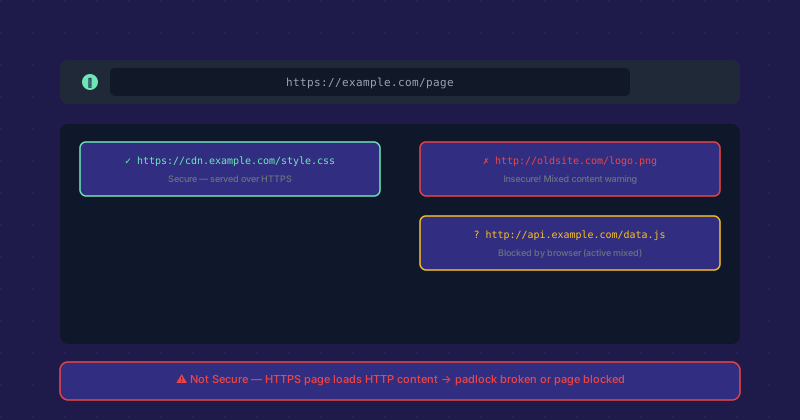
Mixed content occurs when an HTTPS page loads one or more resources over HTTP. The page itself is served securely, but a resource — an image, stylesheet, script, iframe, or API call — is being requested over an unencrypted connection. This undermines the security guarantee of HTTPS because that HTTP resource can be intercepted or modified by anyone on the network path.
Passive vs. Active Mixed Content
Not all mixed content is equally serious. Passive mixed content — images, audio, and video loaded over HTTP — cannot directly alter the page structure, so browsers typically display it but show a modified security indicator (a broken padlock or no padlock). This is a warning, not a block.
Active mixed content — scripts, stylesheets, iframes, and XHR/fetch requests over HTTP — can modify the page and execute code. Because an attacker who intercepts an HTTP script can inject arbitrary JavaScript, browsers block active mixed content entirely rather than just warning about it. A resource that was there yesterday stops loading after the HTTPS migration.
Finding Mixed Content
Open Chrome DevTools (F12), go to the Console tab, and load the page. Mixed content warnings appear here with the specific URL of the problematic resource. The Security tab in DevTools shows a summary of the connection and any certificate or mixed content issues. For a systematic audit of an entire site, tools like "Why No Padlock?" or mixed content scanners will crawl your pages and report all HTTP resources found.
Common Sources of Mixed Content
Hardcoded HTTP URLs in content: Images or links in your database with http:// URLs. For WordPress, the Search-Replace-DB tool or the built-in search/replace in phpMyAdmin lets you update these across the entire database at once. Replace http://yourdomain.com with https://yourdomain.com.
Third-party scripts and embeds: An analytics script, social sharing widget, or chat tool loaded from an HTTP URL. Update the embed code to use https:// or a protocol-relative URL (//).
Hardcoded URLs in theme or plugin files: Template files that construct image or asset URLs with hardcoded http://. Find and update these using grep across your theme files.
CSS background images: Background images in stylesheets referenced with absolute HTTP URLs. Update the stylesheet to use HTTPS or relative paths.
The Content-Security-Policy Upgrade Header
A useful server-side fix for passive mixed content is the Content-Security-Policy: upgrade-insecure-requests header. This instructs browsers to automatically upgrade HTTP resource requests to HTTPS before making them. It does not fix the underlying URLs in your code, but it prevents mixed content warnings for resources that exist on both HTTP and HTTPS. Add it to your nginx or Apache configuration as a stopgap while you work through the underlying URL fixes.
After Fixing: Verify Completely
After updating URLs, test the site in an incognito window (to avoid cached HTTP resources) across multiple page types: homepage, blog posts, product pages, contact forms. Check pages that embed third-party content especially carefully — YouTube embeds, Google Maps, payment widgets, and support chat are common sources. The padlock should be solid green or closed on every page before you consider the migration complete.