How to Read Your Server Error Logs and Actually Understand Them
Server error logs are the closest thing to a black box recorder for your website. When something breaks and users get a 500 error or pages stop loading, the logs usually tell you exactly what happened. Most site owners never look at them. Here is how to change that.
Where to Find Error Logs
On a typical Apache setup, the main error log is at /var/log/apache2/error.log or /etc/httpd/logs/error_log depending on the distribution. Nginx uses /var/log/nginx/error.log. cPanel hosting usually makes logs available at ~/logs/ or through the Error Logs section in the control panel. If you are on shared hosting without shell access, your host almost certainly exposes recent error logs somewhere in the dashboard — look for "Error Logs" or "Raw Access Logs."
The Structure of an Apache Error Log Entry
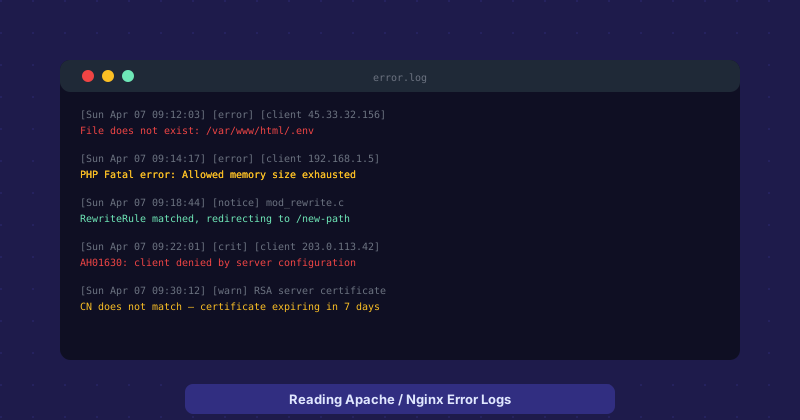
Each line in an Apache error log follows a recognizable pattern: timestamp, log level in brackets, optional client IP, and the error message. For example:[Sun Apr 07 09:14:17] [error] [client 192.168.1.5] PHP Fatal error: Allowed memory size exhausted
The log level tells you severity. emerg and alert are system-level crises. crit means something critical failed. error is the most common level for application problems — a PHP fatal error, a missing file, a failed database connection. warn means something unexpected happened but the server recovered. notice and info are informational. Most of the time, you are scanning for error and crit entries.
Common Errors and What They Mean
File does not exist: Something is requesting a path that has no file at that location. This could be a broken internal link, a misconfigured redirect, or a bot probing common paths like /.env or /wp-admin. If it is a legitimate path that should exist, the file was moved or deleted. If it is junk like /.env or /xmlrpc.php, ignore it — bots do this constantly.
PHP Fatal error / Allowed memory size exhausted: A PHP script tried to use more memory than the PHP memory limit allows. Fix by increasing memory_limit in php.ini or the script configuration, or investigate what is consuming so much memory — often a plugin or import process that handles large data sets without streaming.
Permission denied: A process tried to read or write a file it does not have access to. This usually means incorrect file permissions on the server. Web server processes typically run as www-data or apache and need read access to web files, plus write access to upload directories.
SSL certificate expiry warnings: The log will warn you when a certificate is approaching expiration. This is your cue to renew before the site goes insecure.
PHP Error Logs
PHP has its own error log separate from the web server log. It captures PHP-specific errors including notices, warnings, and fatal errors. The location is set in php.ini via the error_log directive — often /var/log/php_errors.log or inside your home directory. For WordPress sites, you can add define(WP_DEBUG_LOG, true) to wp-config.php to log WordPress-specific errors to wp-content/debug.log.
Tailing Logs in Real Time
If you have shell access and are trying to diagnose a live issue, tail -f /var/log/apache2/error.log follows the log in real time and prints new entries as they appear. Reproduce the error in a browser while watching the tail output and you will see the exact error message the moment it happens. This is significantly more efficient than refreshing and rereading a static log file.
What to Ignore
Error logs on any public-facing server will contain a constant background noise of bot traffic — probes for /wp-login.php, /.env, /admin, /phpmyadmin, and dozens of other common paths. These generate 404 entries and sometimes mod_security blocks. They are not problems specific to your server — they happen on every IP on the internet. Focus your attention on errors related to paths that exist on your site, PHP errors, and permission issues.