How to Move a Website to a New Host Without Breaking Everything
Moving a website to a new host sounds scarier than it is. The reason it goes wrong for people is usually one of two things: they cut the DNS over before the new site is fully set up, or they forget to migrate something. Here is a process that avoids both problems.
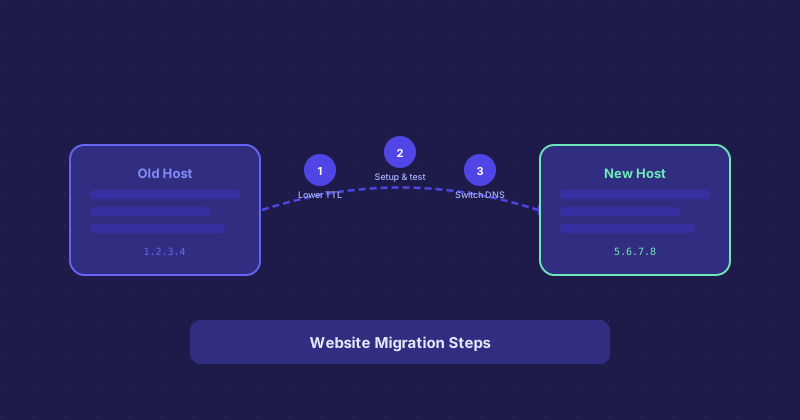
Step 1: Set Up the New Host Completely Before Touching DNS
Do all your work on the new server first, before anyone knows the migration is happening. Upload your files, set up databases, configure email if applicable, and test everything. Most hosts let you preview your new site via a temporary URL or by editing your local hosts file to point the domain at the new server IP before DNS changes go live.
This is the most important step. DNS propagation takes time, and during that window, some visitors hit the old server and some hit the new one. If the new server is not ready, you have a problem.
Step 2: Lower the DNS TTL Early
A week before you plan to migrate, log into your DNS provider and lower the TTL (time to live) on your A records to something short — 300 seconds (5 minutes) is common. This means that when you actually change the IP address, the change propagates quickly instead of being cached for hours.
After the migration is complete and stable, you can raise the TTL back to a higher value like 3600 (one hour) or more.
Step 3: Take a Fresh Backup Right Before Cutover
Even if you migrated your files days ago, take one final backup of the old site immediately before switching DNS. This captures any new uploads, posts, or database changes that happened after your initial migration. For database-driven sites like WordPress, this means a database export plus a files backup.
Step 4: Update the DNS Records
Change your A record to point to the new server's IP. If you have a separate www A record or CNAME, update that too. Because you lowered the TTL beforehand, most DNS resolvers around the world will pick up the change within minutes rather than hours.
Do not cancel or delete your old hosting account yet. Leave it running for at least 48 hours. Some resolvers cache aggressively regardless of TTL, and you want the old server still available for anyone who has not received the new DNS yet.
Step 5: Verify Email and Other DNS Records
A lot of migrations go fine for the website but break email. MX records, SPF TXT records, DKIM TXT records — these all need to be recreated at the new DNS provider if you moved nameservers. If you only changed the A record and kept the same nameservers, email is not affected.
Go through every DNS record your old setup had and make sure each one exists at the new provider. DNS lookup tools make this easy — run a check on your domain before and after to compare.
What Can Go Wrong and How to Fix It
The most common issues post-migration are mixed content warnings (your HTTPS site loading some resources over HTTP because internal links used hardcoded HTTP URLs), missing files, and database connection errors from mismatched credentials. A staging test on the new server before cutover catches most of these.
If the site breaks after the DNS switch, the fastest fix is usually to point DNS back to the old server while you sort it out. That is why keeping the old server alive matters.
How Long Does Migration Take?
For a simple static site, an hour or two. For a complex WordPress install with a large database, plugins, and email, a few hours to a full day including testing. The actual DNS cutover is instant — the prep work is what takes time.