How to Migrate Email to a New Host Without Losing a Single Message
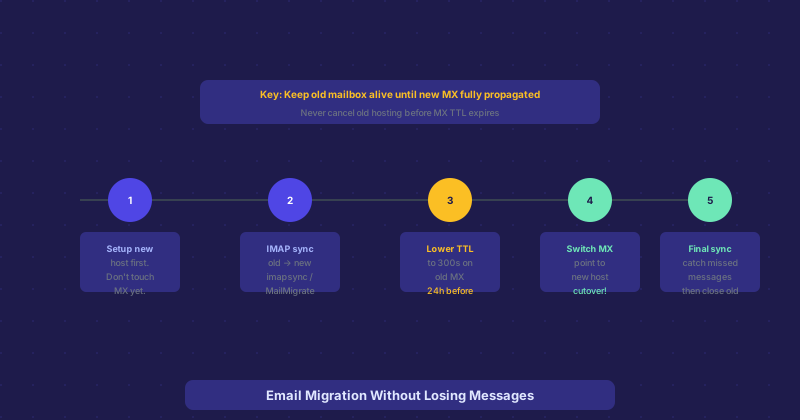
Migrating email is one of those tasks that looks simple until you do it wrong and realize some messages are gone forever. The key is understanding the window of risk — the period when mail could arrive at the old server after you have stopped checking it, or at the new server before you have set it up. Here is the sequence that eliminates that risk.
Why Email Migration Is Different From Website Migration
When you migrate a website, you can test the new server with a hosts file entry before changing DNS, and if something is wrong you can revert. Email is live — messages are delivered in real time, and if the wrong server is receiving them or the old server is shut down too early, those messages are gone. The transition window requires overlap, not cutover.
Step 1: Set Up the New Mail Server Before Touching DNS
Create all email accounts on the new mail server — same usernames, strong passwords — before making any DNS changes. Test that you can connect to the new server with an email client using its direct hostname (not your domain). Verify that you can send and receive through the new server directly. Do not change any MX records yet.
Step 2: Copy All Existing Email via IMAP Sync
With both servers running, copy all existing email from the old server to the new one. The tool for this is imapsync — a Perl utility that syncs mailboxes between two IMAP servers while preserving folder structure, read status, and flags. Run it for every account you are migrating. This can take minutes for small mailboxes or hours for accounts with years of email history. Let it run to completion before proceeding.
If imapsync is not available to you, most email clients (Thunderbird in particular) can do this manually: add both accounts to the client, select all messages in each folder on the old account, and drag them to the corresponding folder on the new account. It is slower but works without any server-side tools.
Step 3: Lower the MX Record TTL
At least 24–48 hours before the planned cutover, lower the TTL on your MX records to 300 seconds (five minutes). This ensures that when you do change the MX records, the change propagates quickly across the internet rather than taking the previous TTL (often 24 hours) to spread. Do not change the MX destination yet — just lower the TTL.
Step 4: Switch the MX Records
Update your MX records to point to the new mail server. With the TTL lowered, this change will propagate to most resolvers within 5–10 minutes. New mail will start arriving at the new server. Keep the old mail server running and continue to check both — during the propagation window, some mail may still arrive at the old server as different parts of the internet see the old vs. new DNS records.
Step 5: Final Sync After Propagation
Wait 24–48 hours after switching MX records to ensure full propagation. During this window, run imapsync again to copy any messages that arrived at the old server after the initial sync. This catches the messages that arrived during the transition window before DNS fully updated everywhere.
Step 6: Verify and Decommission
After 48–72 hours with no new mail appearing on the old server, you can consider the migration complete. Check the old server logs to confirm incoming connections have stopped. Update SPF records if the new mail server has a different IP. Do not cancel the old hosting plan until you are fully satisfied — keeping it active for another billing cycle costs little and provides a safety net if something surfaces late.
Autoconfigure and Client Reconfiguration
After migration, users need to update their email client settings to point to the new server. The IMAP and SMTP server hostnames will change. If you use autodiscover or autoconfig DNS entries (common for Outlook and Thunderbird automatic configuration), update those records to point to the new server settings. Send instructions to users in advance so they know to expect this change and what the new settings are.