How to Check if Your DNS Has Propagated (and What to Do if It Hasn't)
You updated your DNS records, waited the suggested hour, and your site still is not showing up on the new server. Is propagation done? Is something misconfigured? Here is how to actually check.
What Propagation Actually Means
When you change a DNS record, the change takes effect at your authoritative nameserver immediately. But the rest of the internet does not see it immediately — every DNS resolver caches records for the duration of the TTL (time to live) value. Until each cached copy expires and a fresh lookup happens, different users around the world may see different results.
This is why "DNS propagation" takes time. It is not one global update, it is millions of caches expiring at different times.
The Fastest Way to Check
Run a dig query directly against your authoritative nameserver, bypassing any caching:
dig @ns1.yourhost.com example.com AReplace ns1.yourhost.com with your actual nameserver (check your registrar). If this returns the right IP, your authoritative record is correct. The issue is just cache propagation, and it will resolve on its own.
Checking From Multiple Locations
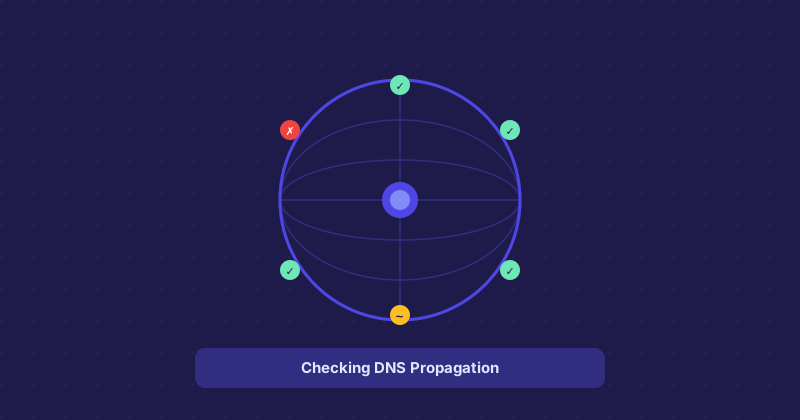
Use a global DNS checker to see what different regions see. Various free tools ping DNS servers across multiple continents and show you the current A record from each. If North America shows the new IP but Europe still shows the old one, propagation is still in progress.
Why Propagation Seems to Take Forever
Two main reasons:
- High TTL on the old record. If your old A record had a TTL of 86400 (24 hours) and you changed it, some resolvers will cache the old IP for up to 24 hours. Always lower your TTL to 300 or lower before making a switch.
- ISP-level caching. Some ISPs run DNS resolvers that ignore TTL values and cache aggressively. This is technically non-compliant but happens. Flushing your local DNS cache or switching to a public resolver (8.8.8.8) can show you what the properly-propagated answer looks like.
How to Flush Your Local DNS Cache
Sometimes you updated everything correctly but your own computer is showing you stale results. Fix this with:
- macOS:
sudo dscacheutil -flushcache; sudo killall -HUP mDNSResponder - Windows:
ipconfig /flushdns - Linux:
sudo systemd-resolve --flush-caches
The Real Question to Ask
Before troubleshooting propagation, confirm the authoritative record is correct first. A mistake at the source looks identical to a propagation delay from the outside. Direct query against the authoritative nameserver is your first diagnostic step, every time.