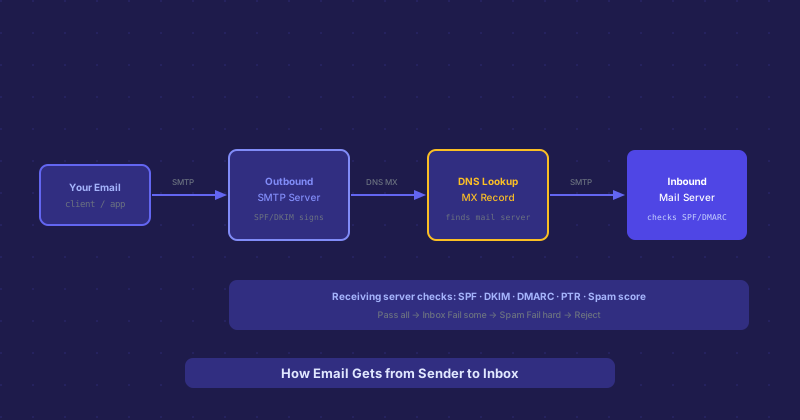
How Email Routing Works: From Send Button to Inbox
You click send on an email and it arrives in someone's inbox moments later. The path it takes to get there is more involved than most people realize — multiple servers, DNS lookups, authentication checks, and spam scoring all happen in the seconds between send and delivery.
Step 1: Your Email Client Submits to Your Outbound Server
When you click send, your email client (Gmail, Outlook, Apple Mail, Thunderbird) connects to your outbound SMTP server. For personal Gmail this is smtp.gmail.com; for a business email service it is whatever your provider specifies. This connection typically uses port 587 with STARTTLS encryption, or port 465 with direct SSL. Your client authenticates with your username and password, then hands off the message.
Step 2: Your Server Signs the Message
The outbound server processes the message and, if properly configured, adds authentication signatures. DKIM signing adds a cryptographic signature to the message headers based on the message content and your domain's private key. This signature allows receiving servers to verify that the message was sent by an authorized server for your domain and was not altered in transit.
Step 3: DNS MX Lookup for the Recipient Domain
To deliver the message, your outbound server needs to know which server handles email for the recipient domain. It performs a DNS MX record lookup for the recipient's domain. The MX record returns one or more mail server hostnames with priority values. The sending server attempts delivery to the highest-priority (lowest number) server first, falling back to lower-priority servers if the primary is unavailable.
Step 4: SMTP Delivery to the Receiving Server
Your outbound server opens an SMTP connection directly to the recipient's mail server, typically on port 25. The servers exchange a greeting, identify themselves with EHLO, and transfer the message. Modern mail-to-mail connections use opportunistic TLS — they encrypt the connection if both servers support it, which most do.
Step 5: Authentication and Spam Checks
The receiving server runs a battery of checks on the incoming message. SPF check: is the sending server's IP authorized in the sender domain's SPF record? DKIM check: does the DKIM signature verify against the public key in the sender's DNS? DMARC check: given the SPF and DKIM results, does the message pass the domain owner's stated policy? PTR check: does the sending IP have a valid reverse DNS entry?
Beyond authentication, the server runs the message through spam scoring — analyzing content, links, sending history, blacklist status of the sending IP, and dozens of other signals. High-volume providers like Gmail use machine learning models that weigh all these signals together.
Step 6: Delivery to the Mailbox
If the message passes all checks, the receiving server stores it in the recipient's mailbox using its internal mail storage system (typically Maildir or mbox format). The recipient's email client then retrieves new messages either via IMAP (which keeps messages on the server and syncs across devices) or POP3 (which downloads messages to the client and typically removes them from the server).
What Happens When It Does Not Work
If delivery fails temporarily — server busy, rate limit hit, temporary connection error — the sending server queues the message and retries on a schedule (typically within minutes at first, spacing out to hours over a 4–5 day window). If delivery fails permanently — address does not exist, domain does not accept mail, message rejected as spam — you receive a bounce message explaining the reason with an SMTP error code. 550 means the mailbox does not exist. 421 means try again later. 554 means rejected, often for spam reasons.